Randomizing in Data Entry
You can randomize Subjects, assign Kits and Devices, and, if needed, reveal treatment or perform an emergency unmasking in the Data Entry tab.
Subject vs. Participant Labeling: Depending on your vault’s configuration, Vault may use the label Subject or Participant. This is a UI label change only, and it doesn’t impact any functionality. The Clinical Data Help site currently uses Subject in our content. .
How to Randomize
A Randomization list must be uploaded in the Randomization module in order to randomize a subject.
To randomize a subject in Data Entry:
- Navigate to the Subject you want to randomize in the Data Entry tab.
- Locate your randomization form in the Casebook Schedule.
- Click the Form to open it.
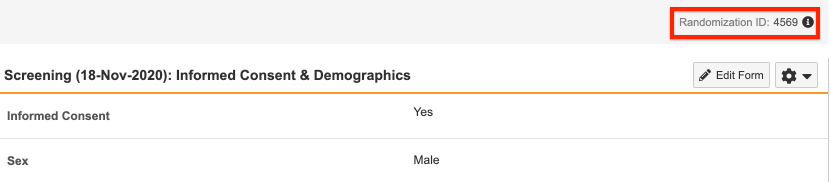
- Fill the required fields. For example, if your Ready to Randomize rule is configured with the Informed Consent and Sex fields as shown below, those fields must be populated to trigger randomization.
- Click Complete.
- In the Randomize Subject dialog, click Randomize Now.
Once the subject is randomized, Vault displays the Randomization ID at the top right of the page.
When configured by a study designer, Vault sends defined user groups an email when a subject is randomized. A lead data manager can assign users to receive these emails.
Emergency Unmasking
Unmasking: Unmasking (blinding) is no longer supported for any studies.
If an adverse event occurs, users with the CDMS Principal Investigator study role can use the Emergency Unmasking action in Data Entry to view a subject’s treatment. Vault will send notifications (if configured) when emergency unmasking occurs.
To use emergency unmasking:
- Navigate to the Subject in the Data Entry tab.
-
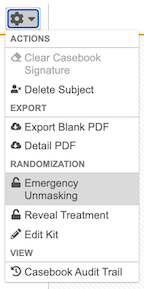
From the subject-level Actions menu, select Emergency Unmasking
-
Enter a Reason for Unmasking Data.
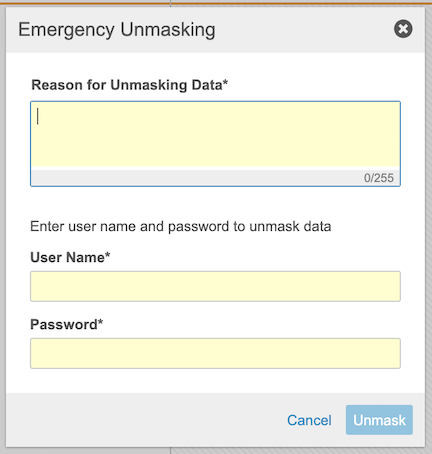
- Enter your User Name and Password.
- Click Unmask.
Reveal Treatment
Users with a Study Role that grants the Reveal Treatment permission can reveal the treatment of a Subject without the action being considered an emergency unmasking.
To reveal treatment:
- Navigate to the Subject in the Data Entry tab.
-
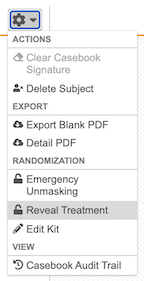
From the subject-level Actions menu, select Reveal Treatment.
-
Enter your User Name and Password in the Reveal Treatment dialog. If the Reveal Treatment requires Sign in Credentials is set to “No” in Randomization Settings, you won’t be required to enter your User Name and Password.
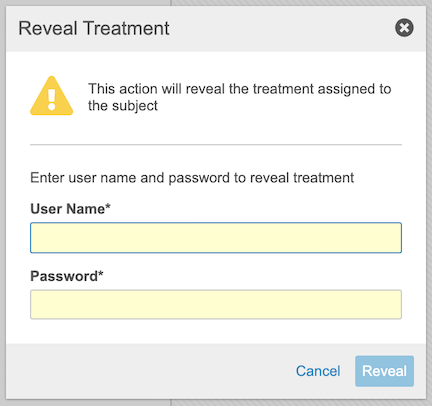
- Click Reveal.